
Get started with Reach
Reach finds the Twitch moments worth clipping while they're still new, helps you edit them, and posts them to your accounts.
- Sign in with your Twitch account.
- Find a moment on Trending, while it's fresh.
- Clip it with one press.
- Edit it into a vertical clip.
- Post it now or at a time you pick.
Sign in
Open Reach and press Continue with Twitch. You land on Home, with the newest moments from the streams you follow.
Find a moment
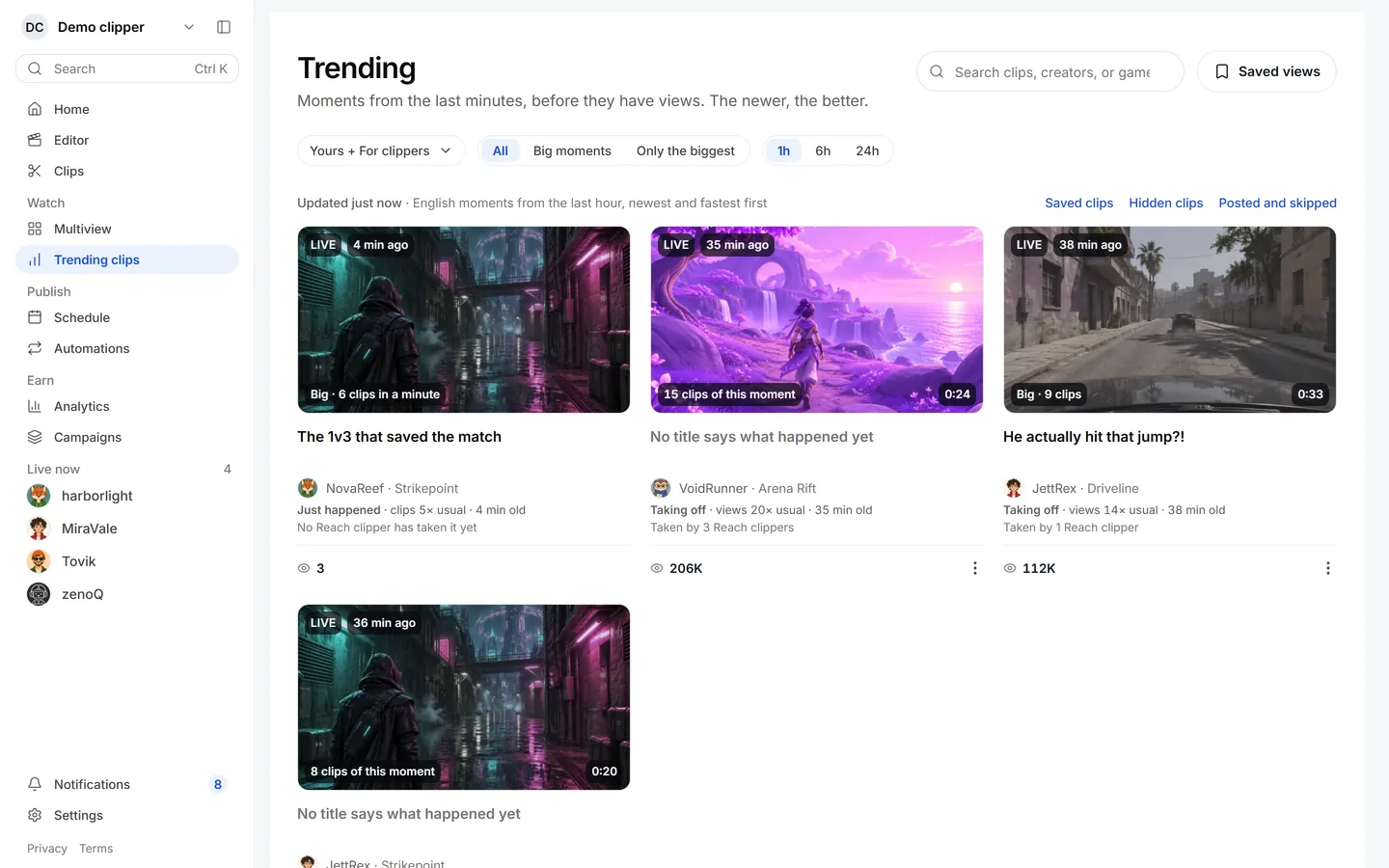
Open Trending clips. It lists what people are clipping right now, newest first, because a moment is worth most before it has views. Click a clip to watch it, and the column beside it tells you if it's still worth clipping.
Clip it
Press Clip this on a moment, and it opens in the Editor.
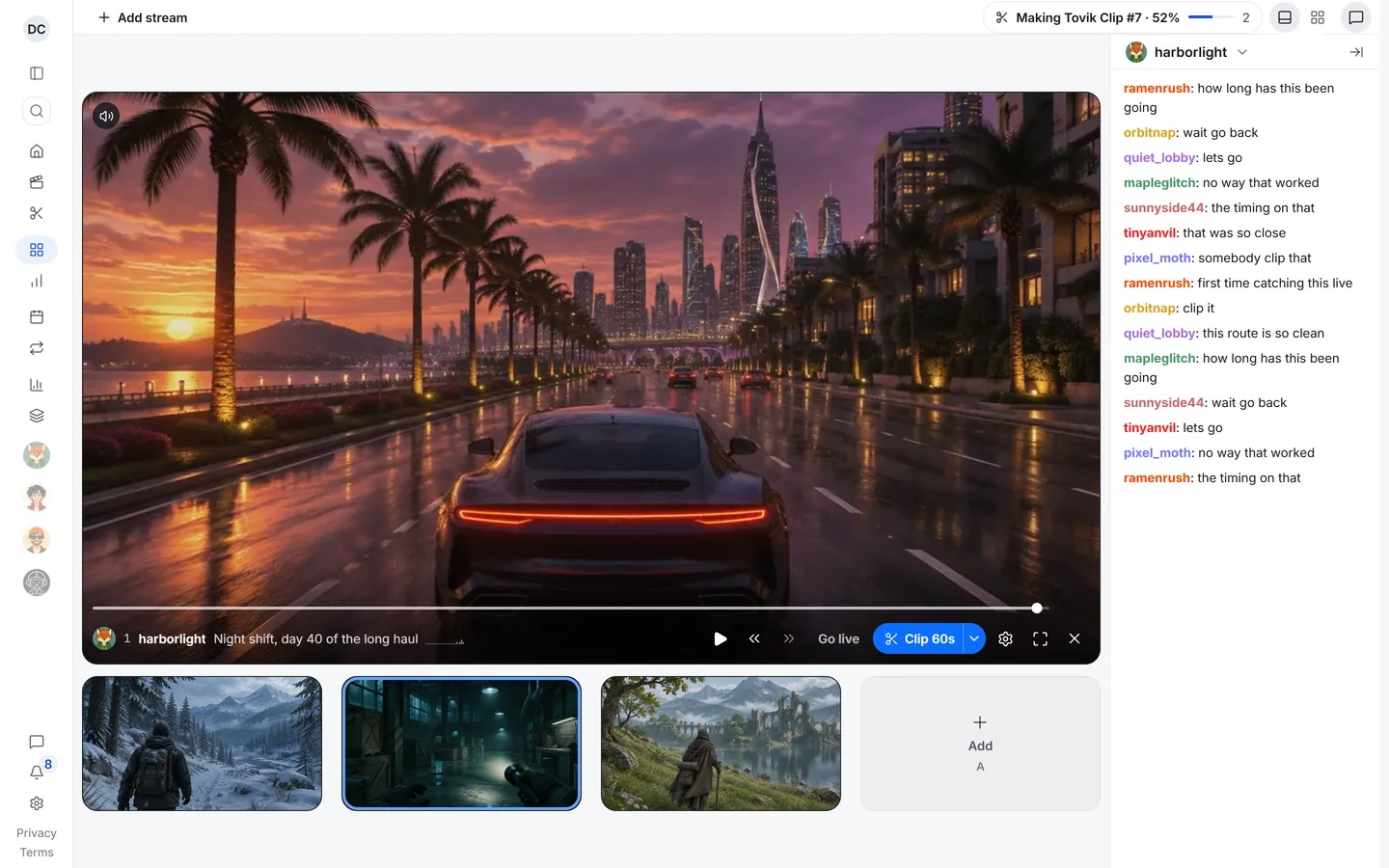
Watching live instead? Put up to six streams on Multiview and press C when one pops off. Reach keeps the part that just played. Have a link? Paste it into the box on Clips.
Edit
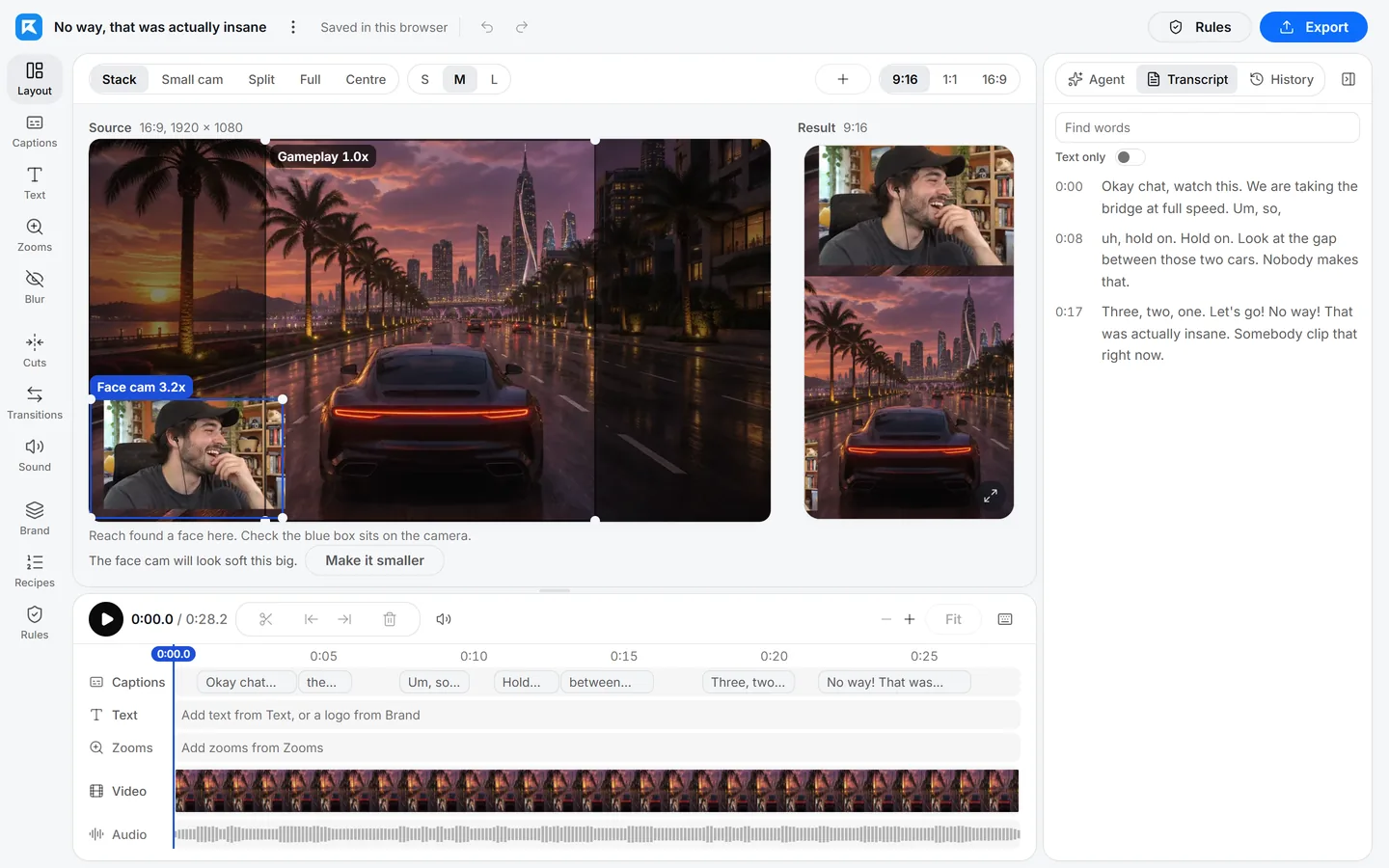
The Editor opens with the face cam stacked over the gameplay, captions written from what was said, and the voice balanced against the game. Change anything with the tools on the left, then press Export.
Post
Open Schedule. Drag a clip onto your week, or press Post to send it now.
- YouTube posts by itself. For now, uploads stay private until Google finishes reviewing Reach.
- Instagram and Facebook come to your phone, and you post them from there.
- TikTok: connecting it isn't open yet.
Stuck? The chat bubble in Reach goes to a real person on the team.
Something here wrong or unclear? Tell us in the Reach Discord.